Set up your listing, then your inventory
List your space or gear, price it properly, then track what it's actually worth — inventory is free on every plan, and it's the foundation an insurance schedule is built from.
Create the listing
From your Manager Dashboard, start a new listing and pick what you're listing — Recording Studio, Rehearsal Space, Music Gear, or Session / Engineer / Teacher. Each type asks slightly different questions after this, since a synth and a live room need different specs.
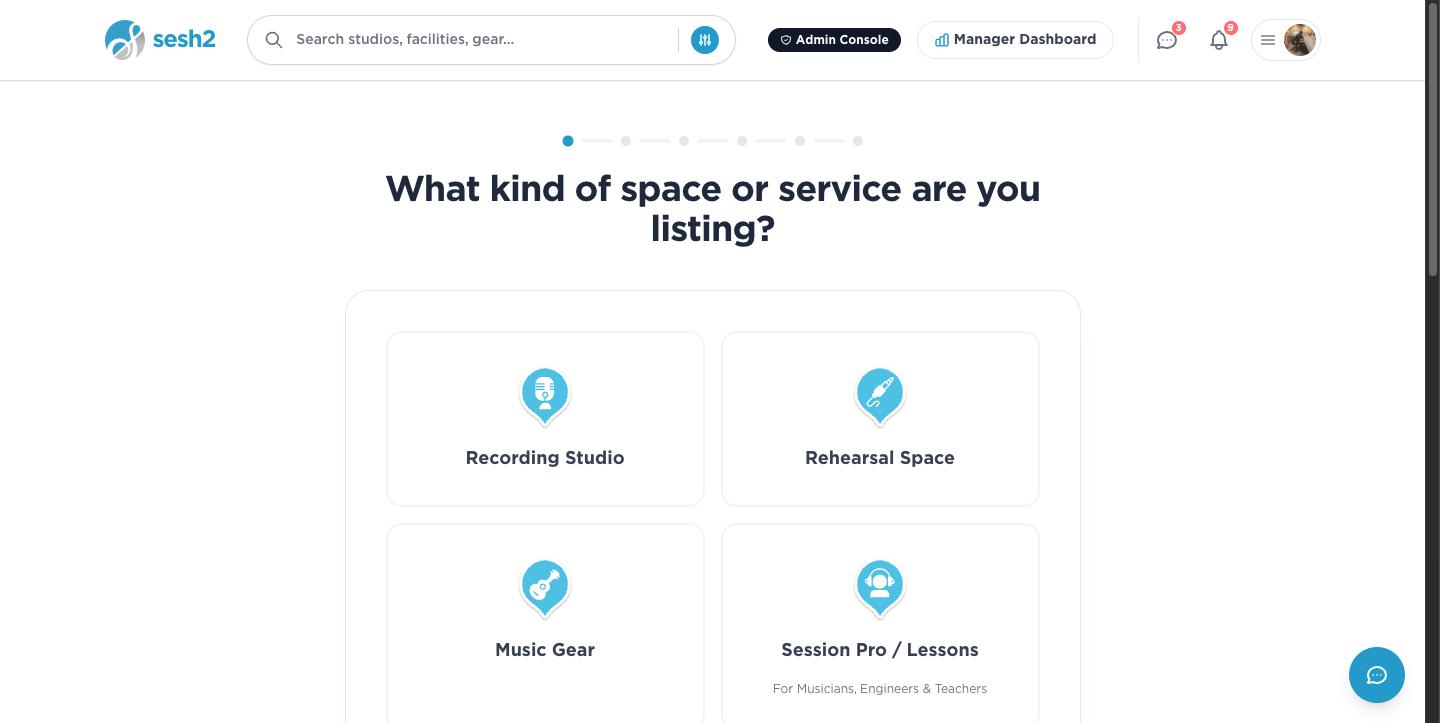
On desktop
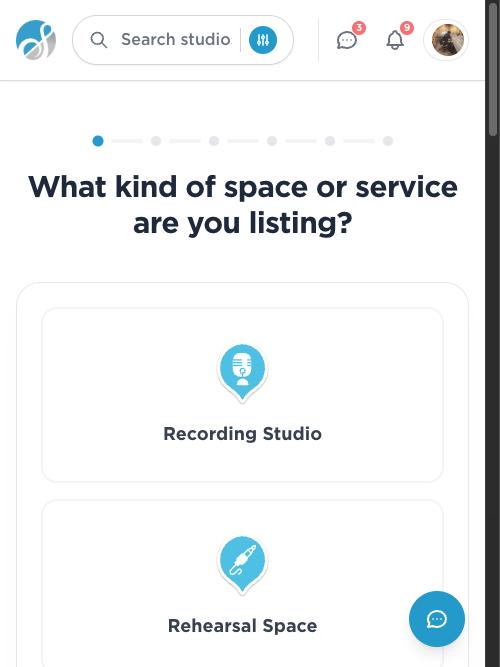
On your phone
Set your rate card
Your headline price is the one guests see first, but the Rate card is where the real pricing lives — hourly (with an optional minimum), half day, a full lockout, weekly, and monthly. Leave any of them blank and it simply isn't offered; there's no requirement to fill in all five.
A week is fixed at 7 days and a month at 30 on every listing, so "weekly" means the same thing everywhere on SESH — a guest comparing two studios is comparing like for like.
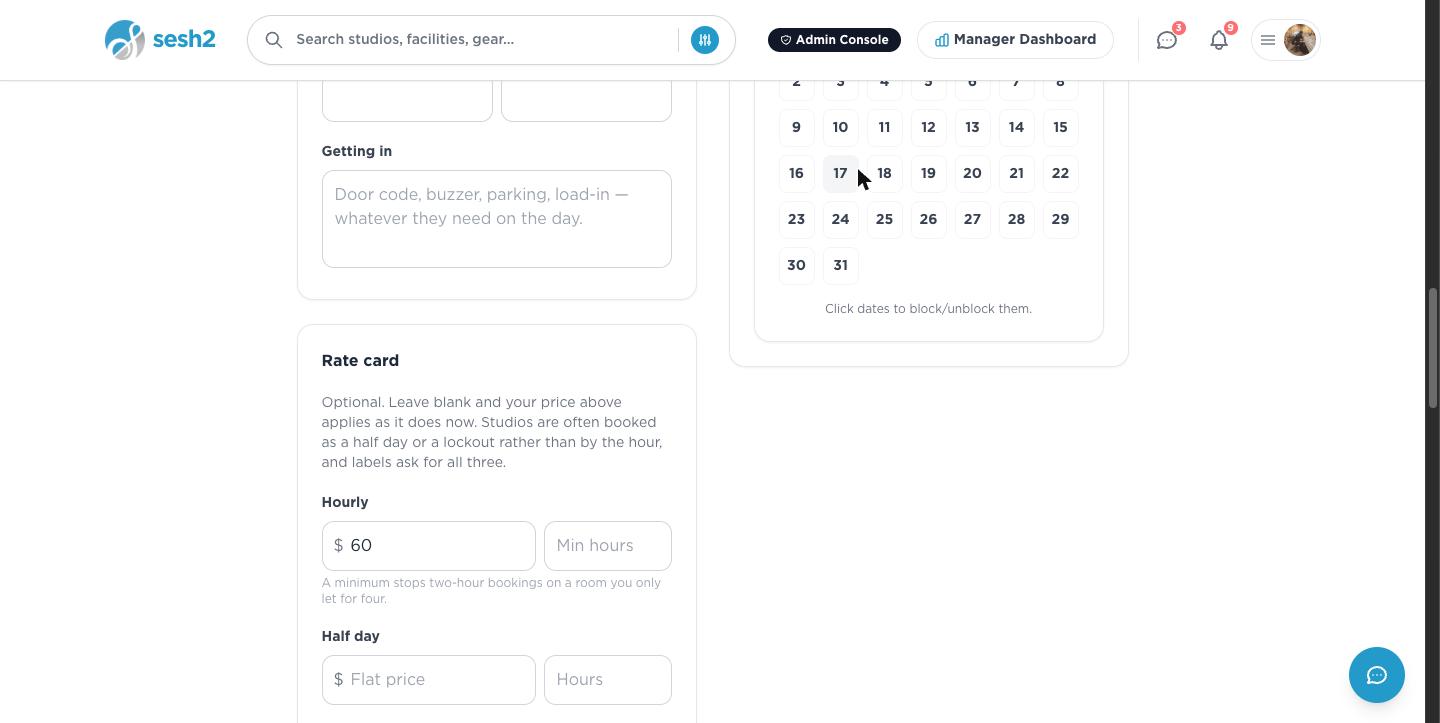
On desktop
Open Inventory
Inventory lives in your Manager Dashboard, separate from your listings. It's everything you own — whether or not you ever rent it out — because an insurer or a buyer wants the whole picture, not just what's publicly booked.
Equipment inventory is free on every plan, including Free. Writing down what you own is your own record, the same category as checking your own earnings — it's never held back for a subscription.
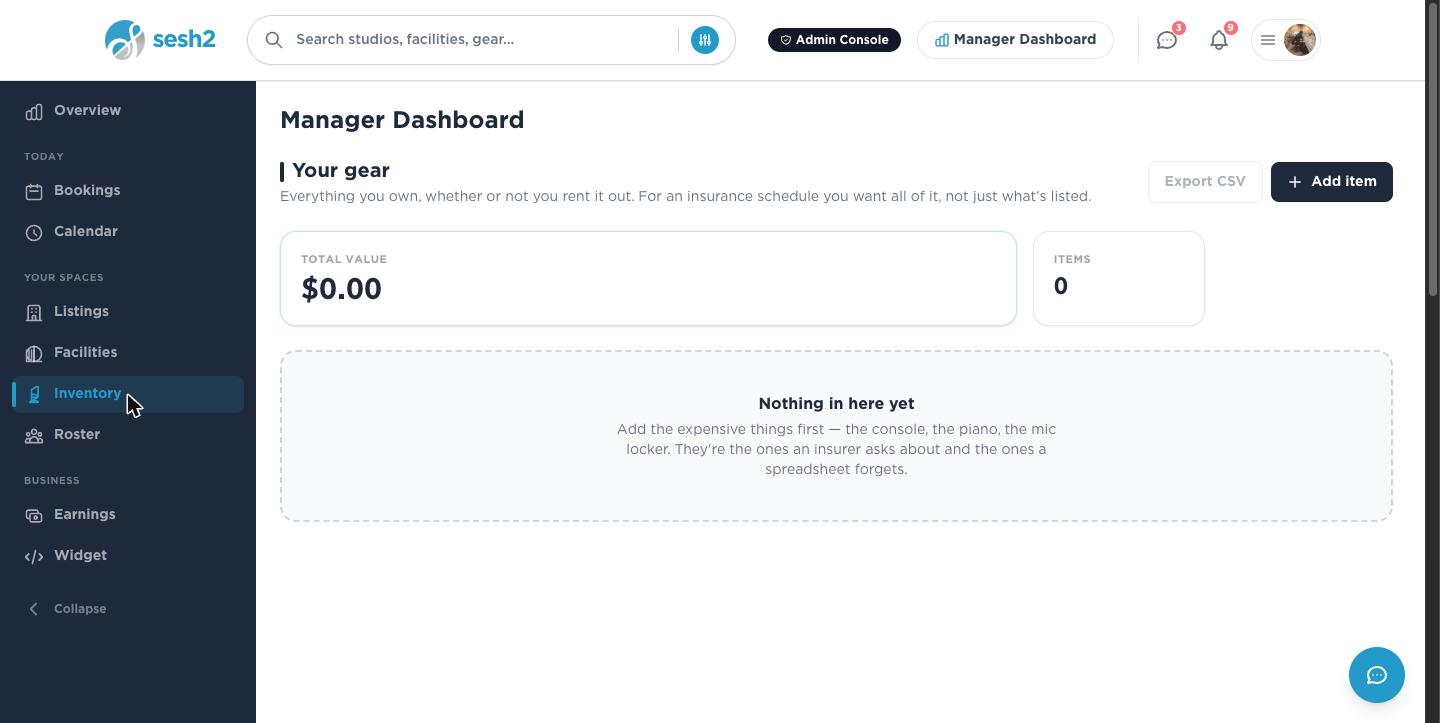
On desktop
Add an item
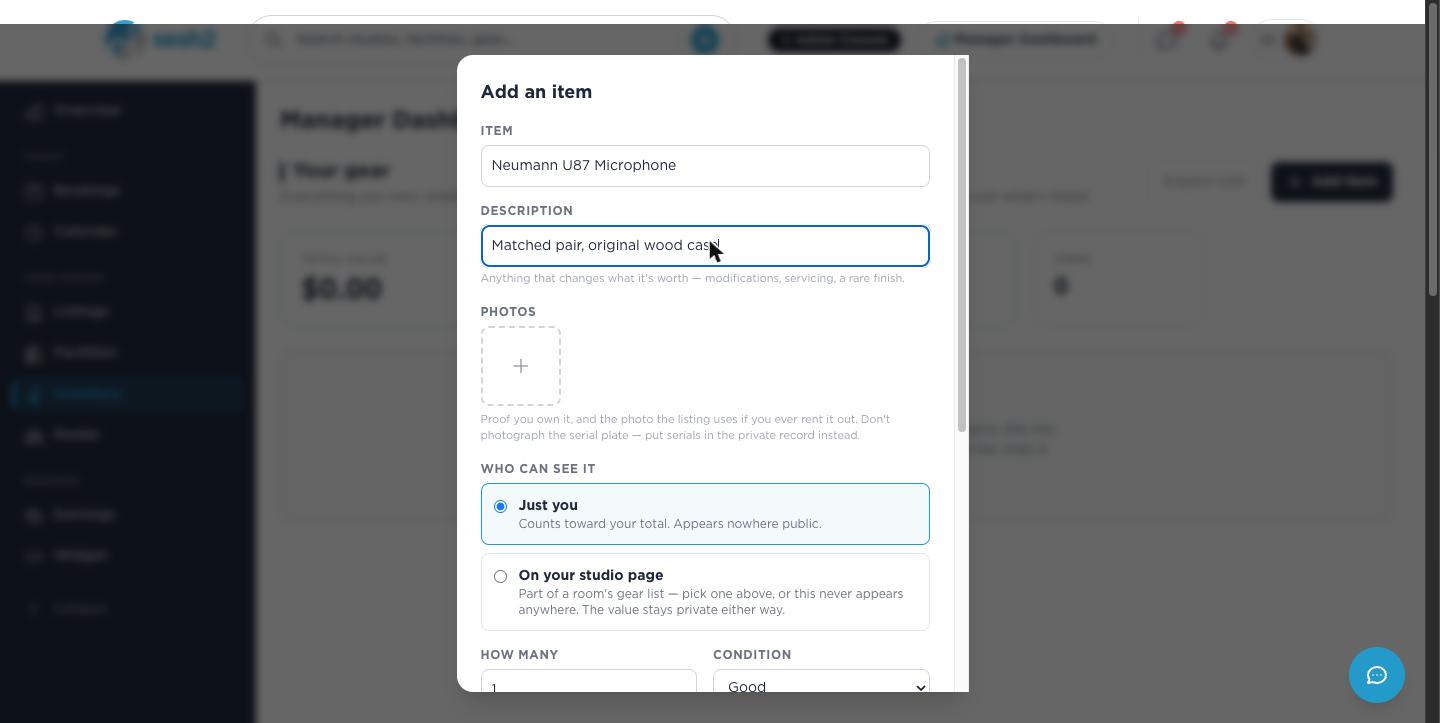
Add item asks for a name, an optional description for anything that changes what it's worth (a rare finish, a recent recap), how many you have, and its condition. Photos prove you own it — and if you ever turn the item into a rental, that's the same photo guests see.
Choose who can see it: Just you keeps it private and counts it toward your total only; On your studio page adds it to a room's public gear list too. Either way the dollar value itself is never shown publicly.
On desktop
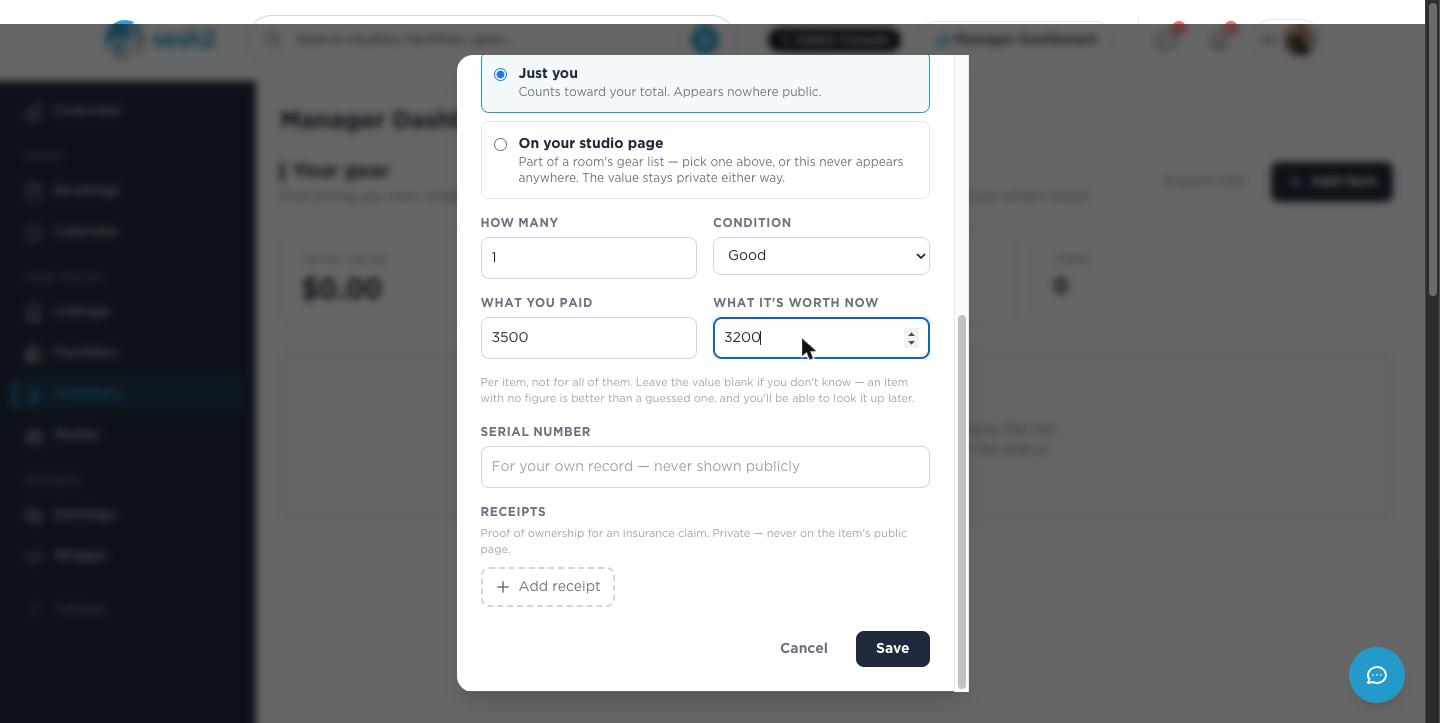
Enter what it's worth — this is the number that counts
"What you paid" is just a note for your own records. "What it's worth now" is the only field that feeds your total — that's the field an insurer or a buyer actually wants, since it reflects the item today, not what it cost years ago.
Leave it blank if you genuinely don't know. An unpriced item is excluded from your total rather than guessed at — better an honest gap you can fill in later than a made-up number baked into your numbers.
On desktop
How the total actually adds up
Each item's contribution is its value times how many you have — not just the value on its own. Two items with the same price but different quantities add very different amounts.
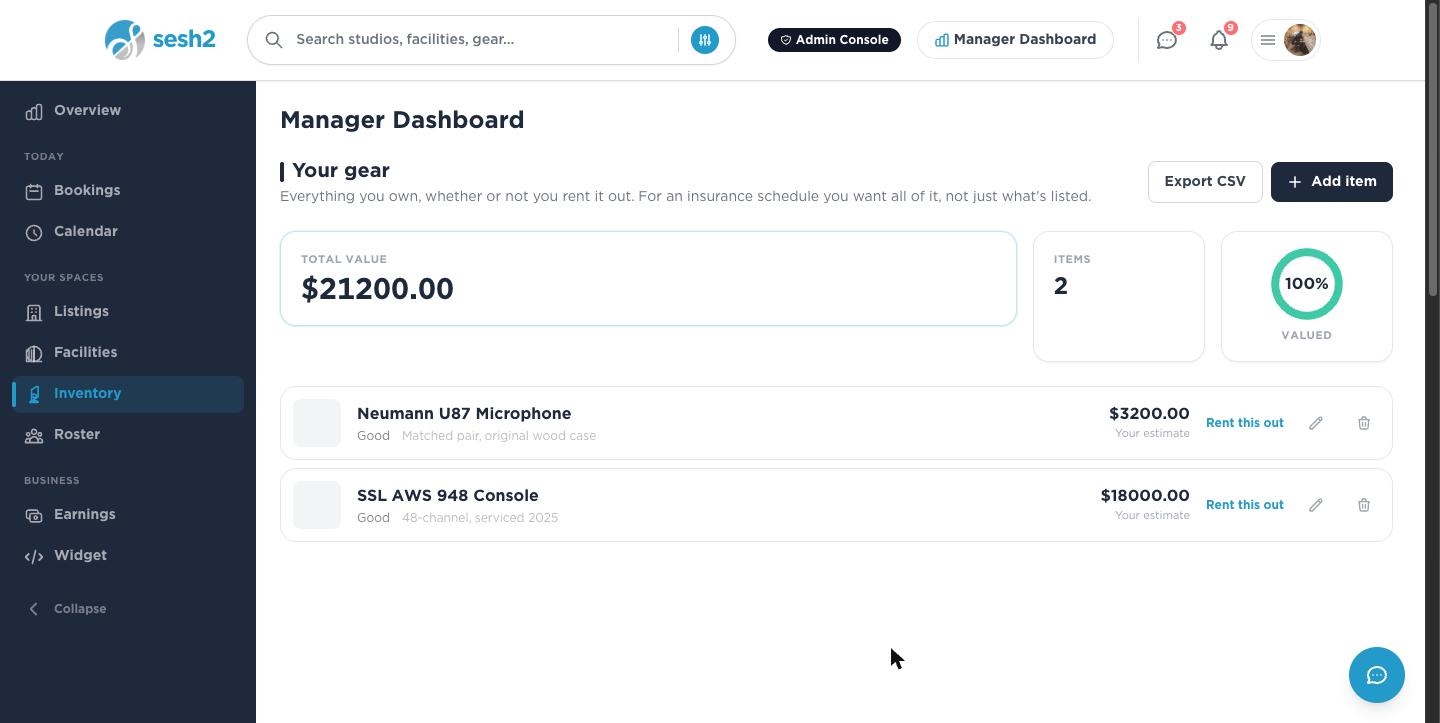
Your studio's example, worked out:
- ·Neumann U87 Microphone — worth $3,200, quantity 1 → adds $3,200.00
- ·SSL AWS 948 Console — worth $18,000, quantity 1 → adds $18,000.00
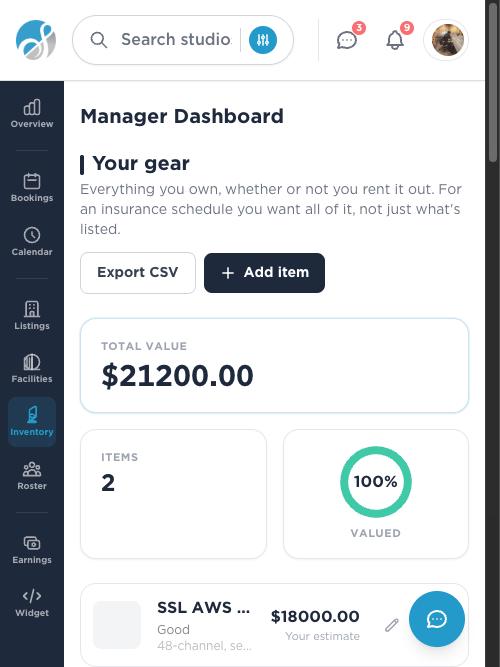
- ·Total Value: $3,200.00 + $18,000.00 = $21,200.00, across 2 items
- ·A second example, to show the quantity math: 4 identical mics worth $99 each add 4 × $99 = $396.00, not $99.
On desktop
On your phone
If you run a multi-room facility, gear can live on a room or the building
When you set "Who can see it" to On your studio page, you'll be asked which studio (room) it belongs to — or, if it's shared gear like a lobby PA or a mic locker that isn't any one room's, which facility generally. An item can be tagged to one room, or to the building as a whole, but never both and never more than one — there's no way to put the same physical item on two rooms' pages at once.
Your account's Total Value never cares which one you picked, or whether you picked either at all. It's always a flat sum of every item you own, counted exactly once — tagging something to a room or a facility only changes where it's displayed publicly, never how it's counted. A facility's public page shows its own shared gear list underneath its rooms, but that's a second place the same number is shown, not a second item added to your total.
Keep the "Valued" percentage honest
Premium & Top ShelfThe ring next to your total shows what share of your items actually have a value entered — not how accurate your total is. At 100%, every item is counting toward the number above it. Below that, your real total is higher than what's shown; the gap is exactly the items you haven't priced yet.
Producing the full insurance schedule and export — the document you'd actually hand to a broker — is a Premium & Top Shelf feature. The inventory itself, each item's value, the running total, and turning an item into a rental all stay free on every plan.
Worth knowing
- ·Add the expensive things first — the console, the piano, the mic locker. They're what an insurer asks about, and what a spreadsheet tends to forget.
- ·Don't photograph the serial plate on an item's public photo — there's a separate, private Serial Number field for that (Premium & Top Shelf).
- ·A rate card is optional. Leave it blank and your listing's headline price simply applies as-is, the way it always has.
Set up your booking widget