Set up your booking widget
Embed a real, live calendar on your own website — visitors pick a time and pay without ever leaving your page.
Open Widget in your dashboard
Free: 1 listing · Boost: any 1 · Premium & Top Shelf: allWidget lives under Business in your Manager Dashboard. Pick which listing to embed — a single listing, or "All my listings" for a catalogue view — and watch the Live Preview update as you go, so you always know exactly what you're about to paste onto your site.
What you can embed depends on your plan: Free gets a widget for one listing of your choice. Boost can embed any individual listing, one at a time. Premium and Top Shelf can also embed the full "all my listings" catalogue widget.
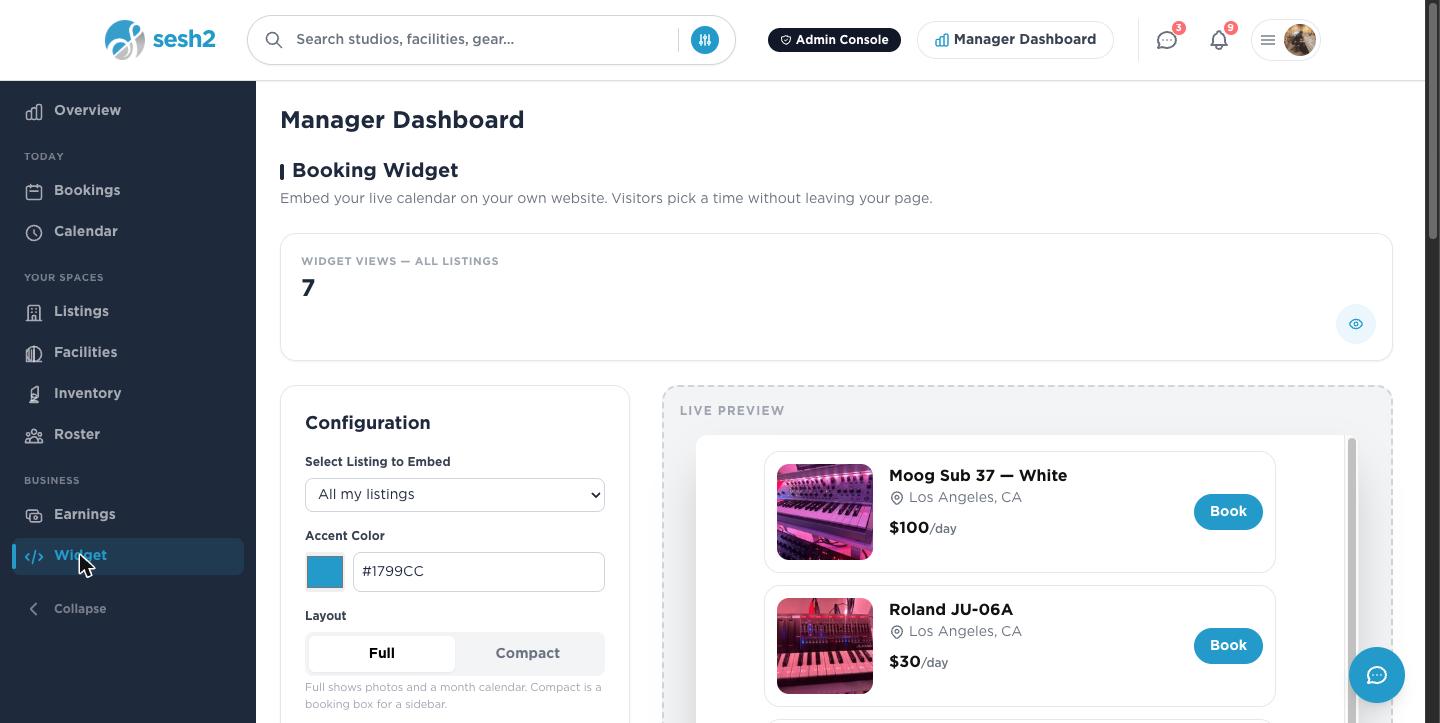
On desktop
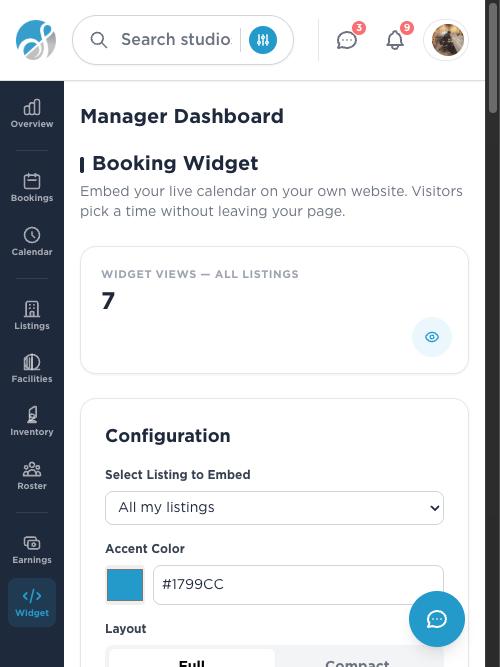
On your phone
Match it to your site
Set an accent color to match your brand, pick Full (photos and a month calendar) or Compact (a booking box sized for a sidebar), and choose Light or Dark to match your site's theme. The preview updates live as you adjust each one.
Copy the embed code
Embed code gives you a ready-to-paste <iframe> block for an HTML block or a custom-code section. Paste the whole thing — including the opening and closing tags — into your site's HTML.
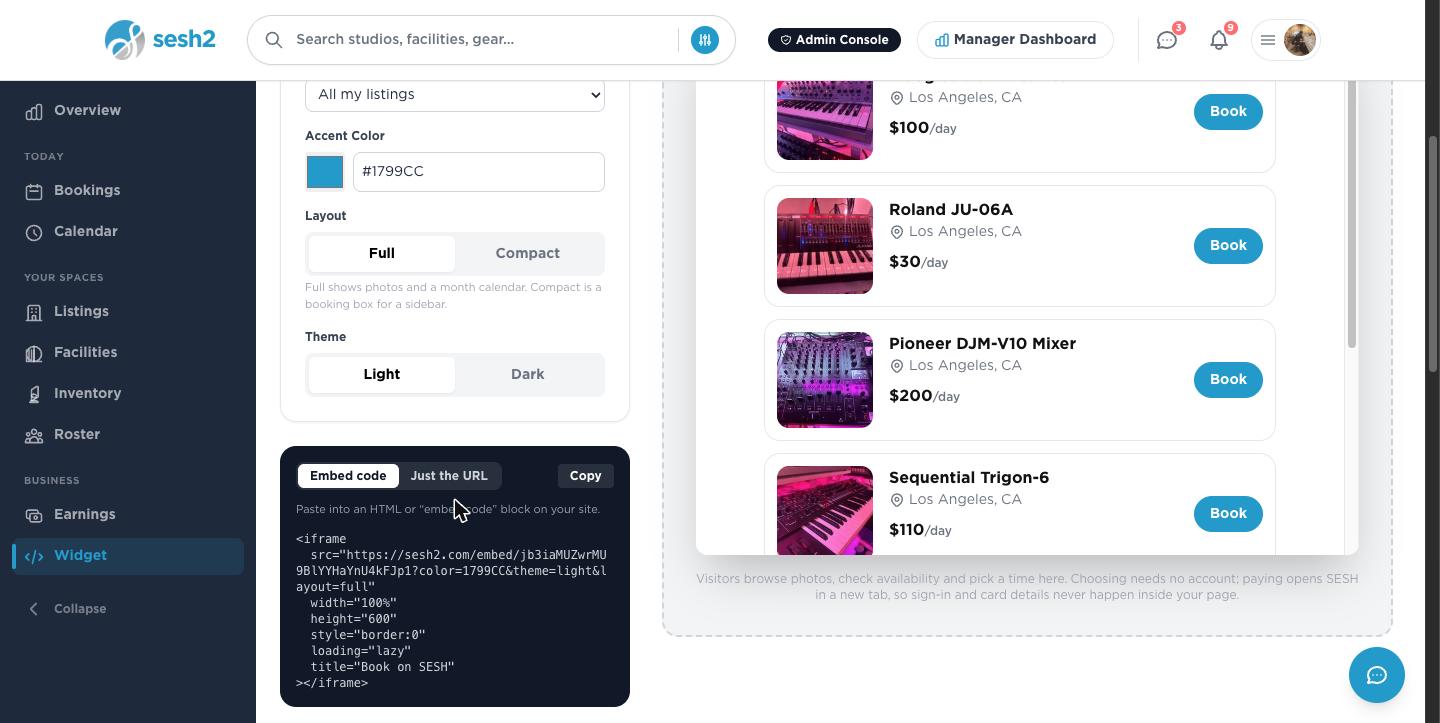
On desktop
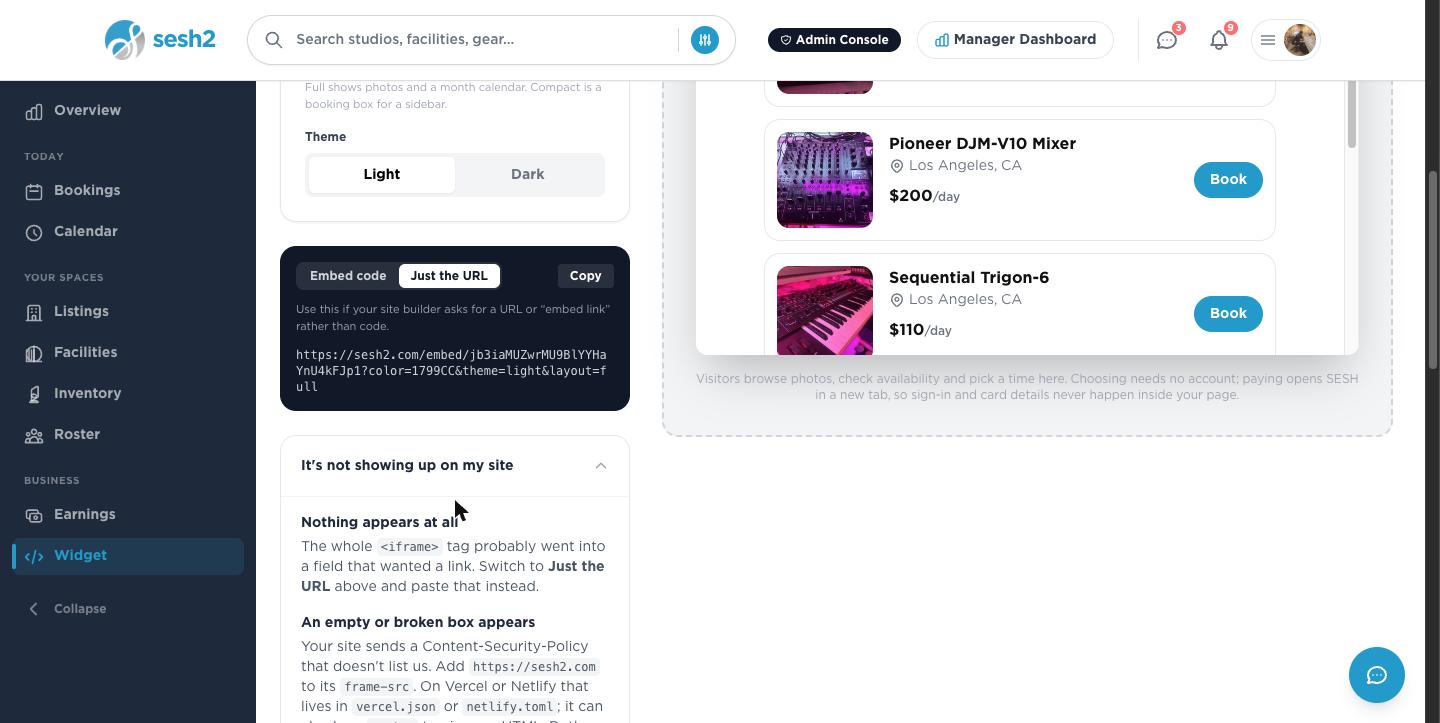
Or just use the URL
Some site builders ask for a link instead of raw code — an "embed" field, or a website block that only wants a URL. Switch to Just the URL for that case and paste the plain link instead. Same widget either way.
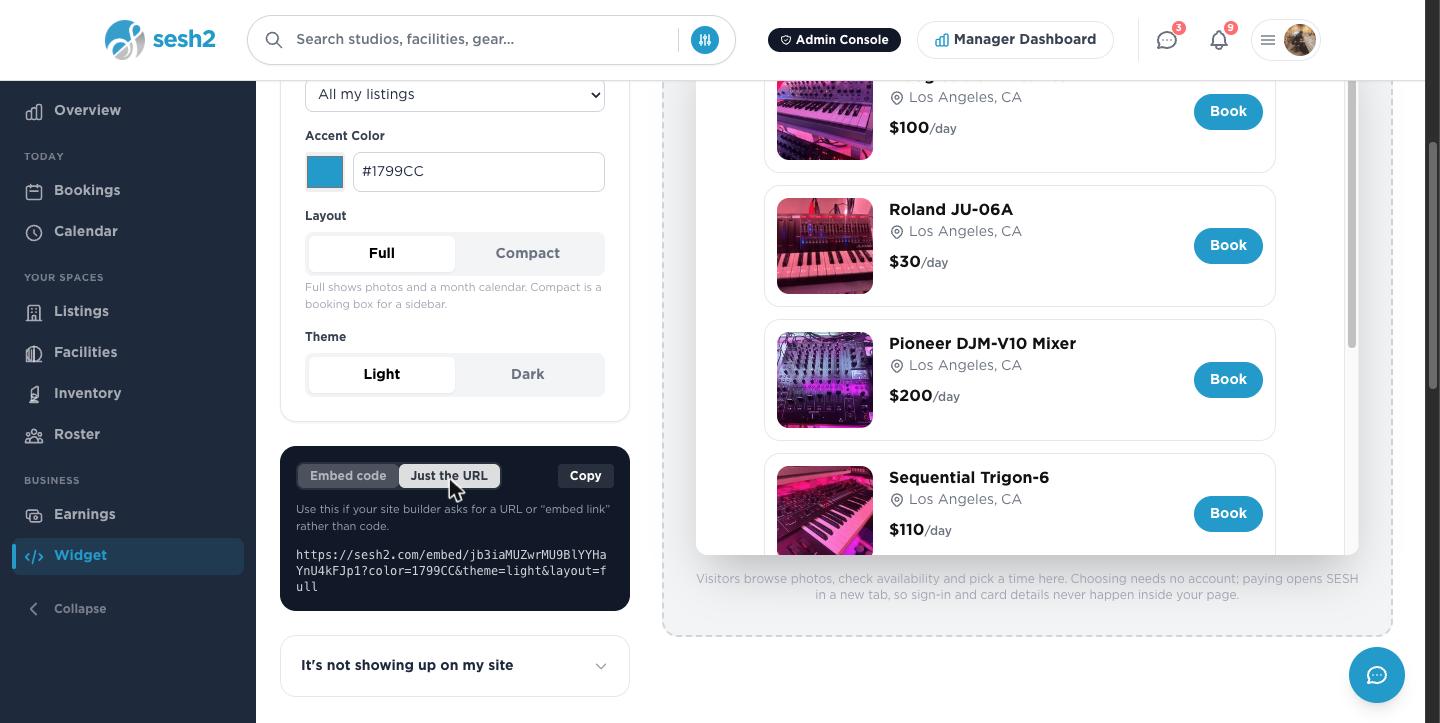
On desktop
If it doesn't show up
The three real causes, in order of how often they actually happen:
- ·Nothing appears at all — the whole <iframe> tag went into a field that wanted a plain link. Switch to Just the URL and paste that instead.
- ·An empty or broken box appears — your site sends a Content-Security-Policy that doesn't list us. Add https://sesh2.com to its frame-src. On Vercel or Netlify this usually lives in vercel.json or netlify.toml.
- ·The calendar loads but "Pay" does nothing — your site's Permissions-Policy is blocking the payment popup. Add payment=(self "https://sesh2.com") alongside your existing policy rather than replacing it.
On desktop
Worth knowing
- ·Visitors browse photos, check availability, and pick a time inside your page. Choosing needs no account; paying opens SESH in a new tab, so sign-in and card details never happen inside your site.
- ·Widget Views at the top of the page counts real visits to your embedded calendar — a quick way to tell if the widget is actually live before a guest ever books through it.
- ·Changing the accent color or layout updates the same embed code — you don't need to re-paste anything on your site unless the listing you're embedding changes.
Setting prices that actually book