Setting up and using Facilities
Group your rooms into one complex so guests browse and book them together — and let independent talent join in as a bookable add-on.
What a Facility actually is
Free: 1 · Boost: 3 · Premium & Top Shelf: unlimitedA Facility groups several of your own listings — rooms, gear, even roster talent — into one complex, so a guest browses them on a single page instead of finding each one separately in search. It isn't a listing itself and has no price of its own; it's a container that your individual listings point to.
Facilities are free to create, up to a limit: 1 on Free, 3 on Boost, unlimited on Premium and Top Shelf.
Create the facility
From Facilities in your Manager Dashboard, New Facility asks for a name, a photo, and a short description — the parking, the lounge, the general vibe. This is the shell; it starts empty.
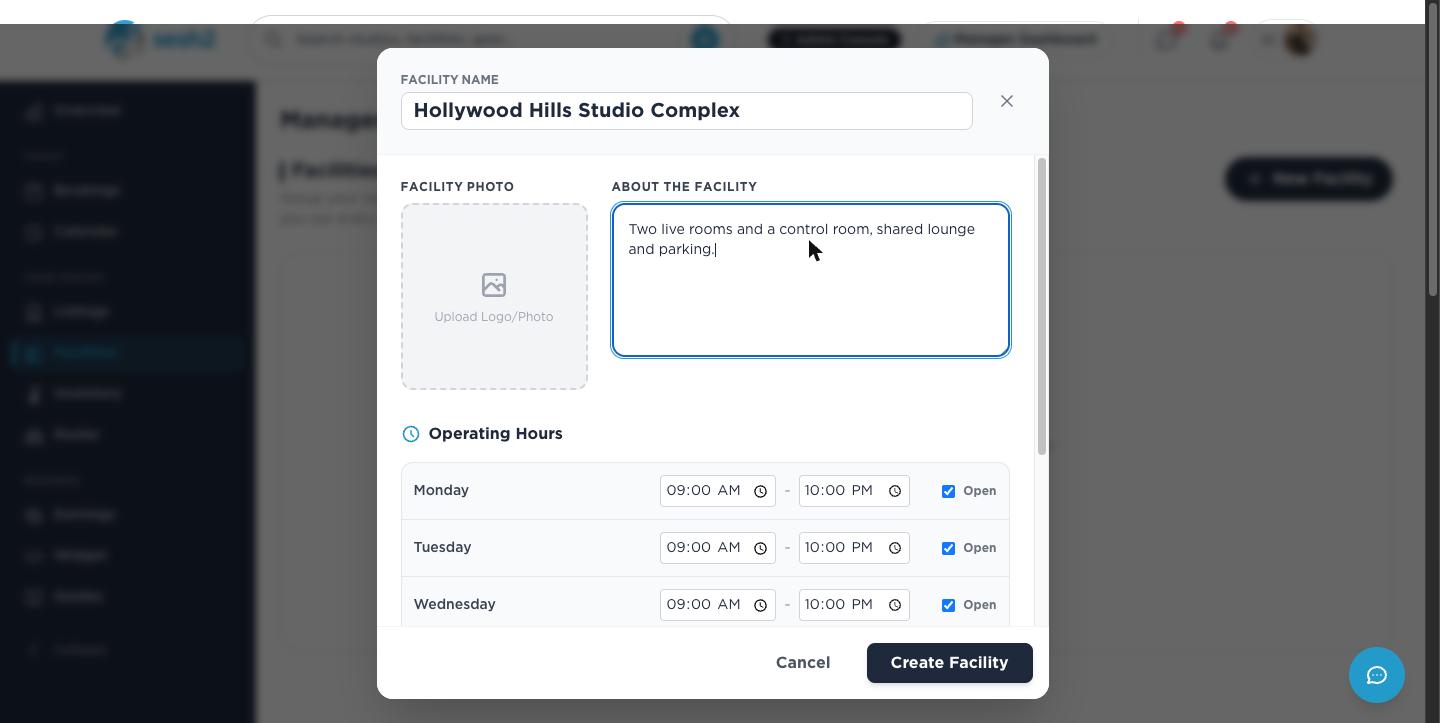
On desktop
Add rooms to it
Once it exists, each facility card gives you Add a room — a shortcut into creating a new listing pre-filled to join that facility — plus Edit, its own Inventory view, and a link to its public page.
To move an existing listing in, open that listing's Edit page and use the Assigned Facility dropdown near the top: pick the facility, save, and it's in. A listing belongs to at most one facility at a time, and picking "None (Independent Listing)" takes it back out without touching anything else about it.
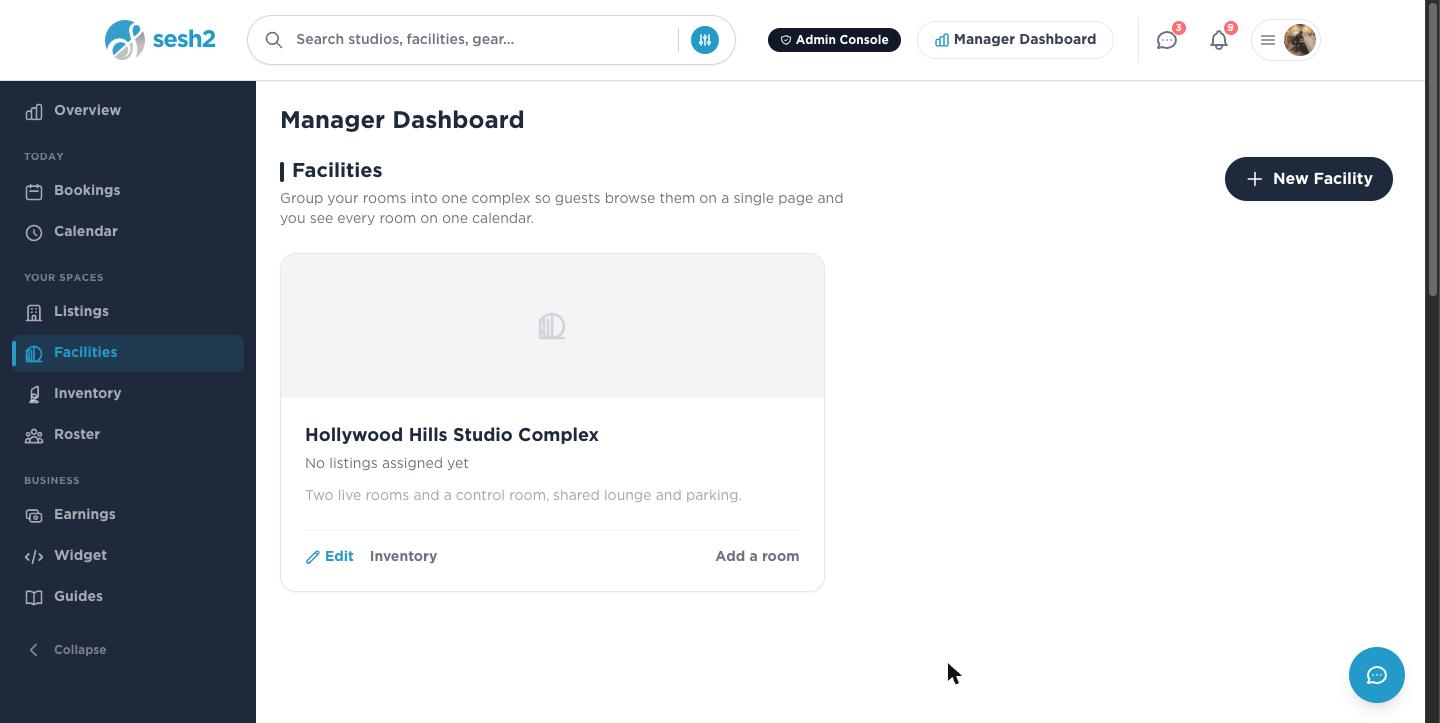
On desktop
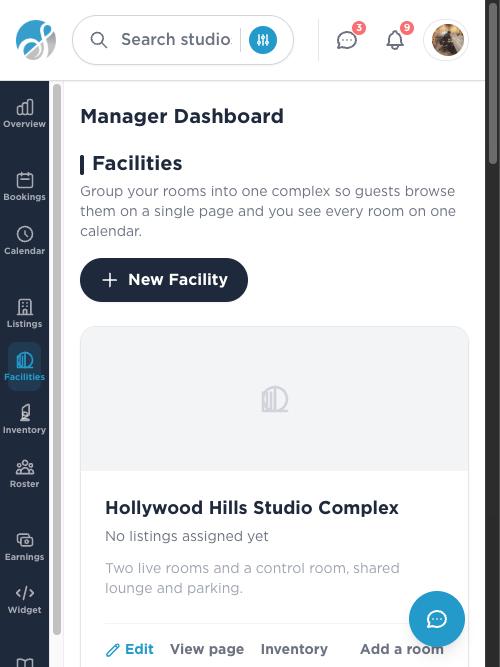
On your phone
What a guest sees: the Session Builder
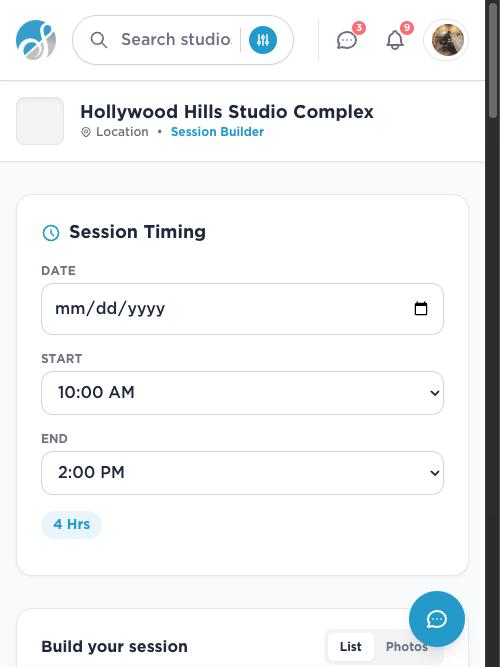
A facility's public page is its own booking flow, not just a directory. A guest picks a date and a start/end time, then browses three tabs — Spaces, Gear, Talent — and can select any combination: one room (picking a second room swaps out the first), plus as much gear and talent as they want alongside it.
Everything selected books as a single reservation with one running total, not several separate bookings. Availability narrows live as items are added — the bookable window is whatever time every selected item actually has free in common.
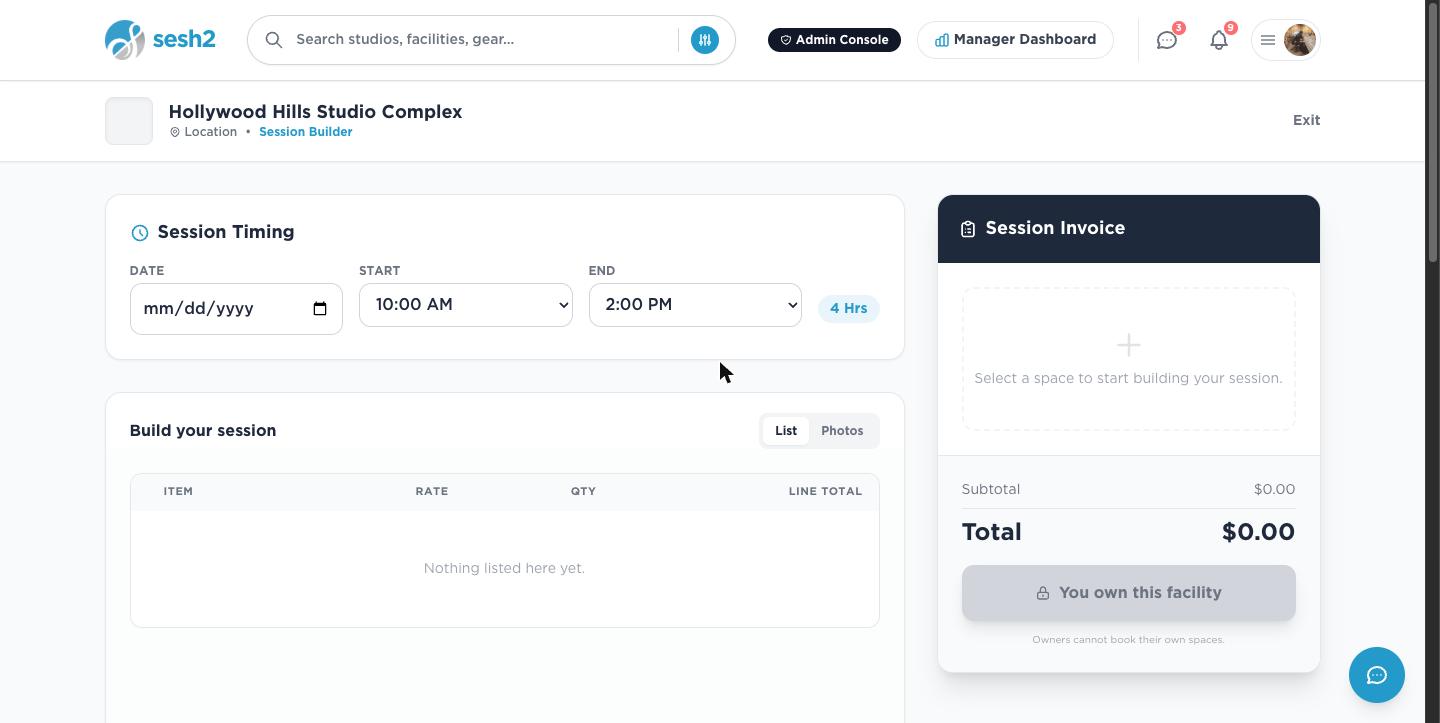
On desktop
On your phone
Bring roster talent into the building
Premium & Top ShelfIf you also use Roster, a talent you've invited onto the facility (rather than one specific listing) shows up in that Talent tab automatically, bookable alongside your rooms in the same Session Builder session. See the Roster guide for how the invite and payout side of that works.
Worth knowing
- ·Renaming a facility is safe — every room inside it updates automatically, so old links keep working rather than breaking.
- ·A private or unlisted room never shows up on its facility's public page, even after you assign it — those visibility settings still win.
- ·Ungrouped rooms aren't worse off exactly, but they show up in search as unrelated listings rather than as one recognizable complex — worth grouping them if you run more than one room in the same building.
How Roster works: invites, payouts, and the ins and outs