How to book a session
Find a space or a piece of gear, pick your time, and pay — no account required until you actually reserve something.
Search or browse
Start from the search bar on any page, or go straight to Browse. Filter by category — Recording Studio, Rehearsal Space, Music Gear, or Session / Engineer / Teacher — and narrow by price, rating, or vibe if you already know what you're after.
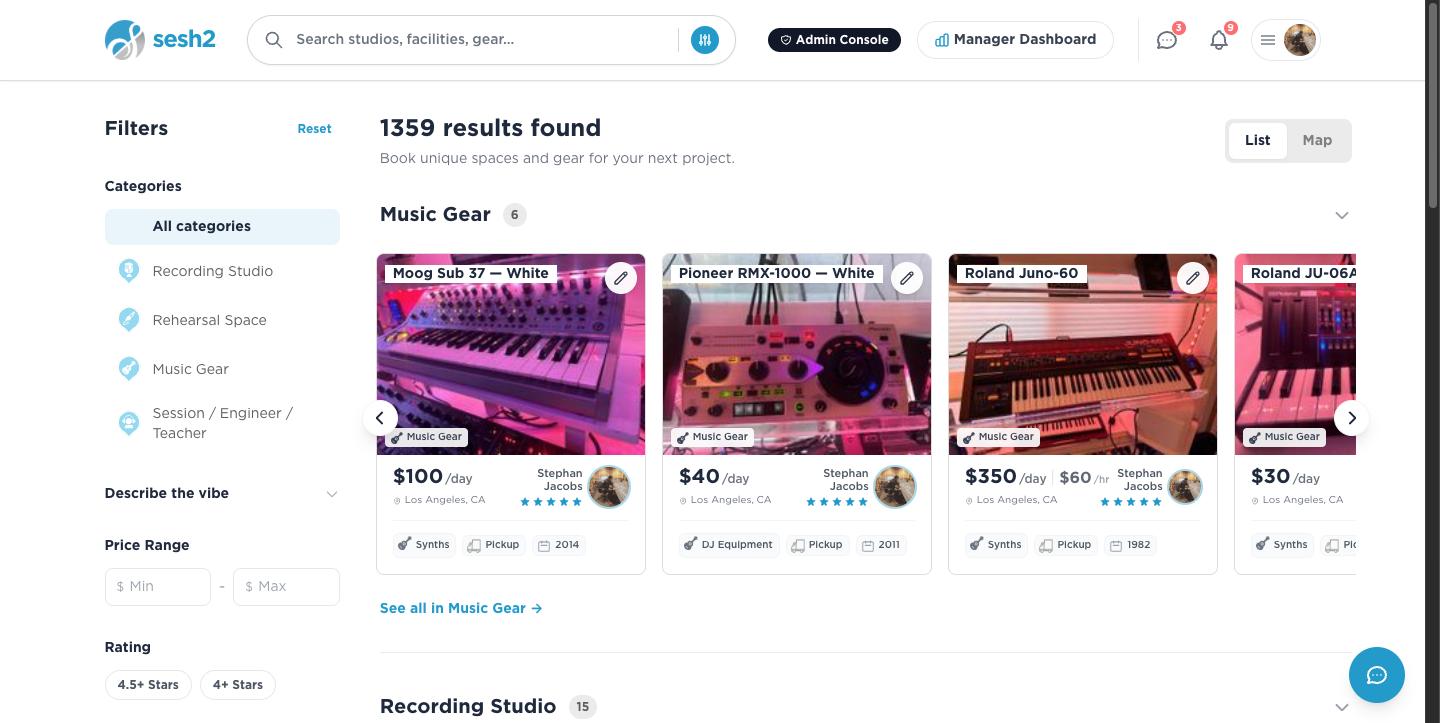
On desktop
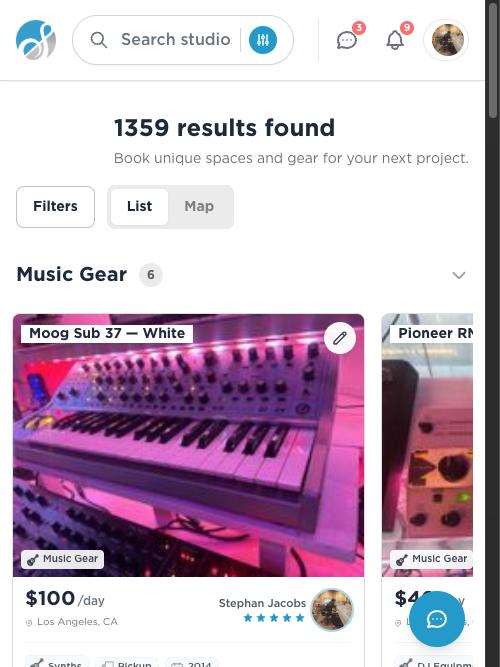
On your phone
Open a listing and check the details
Every listing page shows what you're actually booking: real photos, the gear or room specs, house rules, pickup or access notes, and the host's rating from past sessions. Read this before you book — it's where a host puts anything that changes what you should expect on the day.
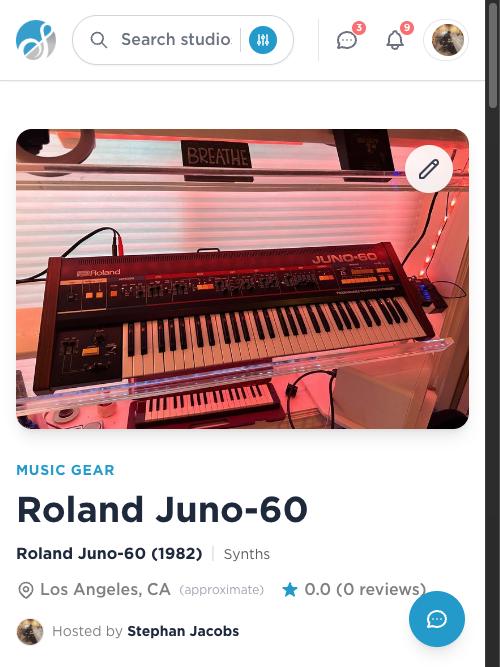
On desktop
Choose your booking type and time
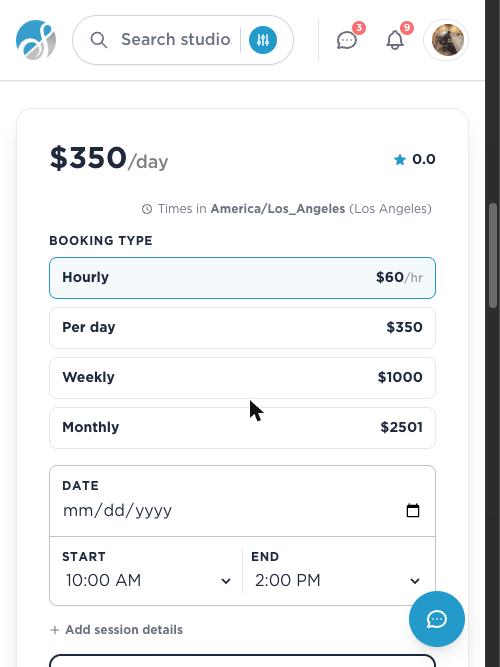
Most listings offer more than one way to book — hourly, a half day, a full day, weekly, or monthly — set by the host. Pick whichever fits, then choose your date and start/end time. SESH checks the host's real availability as you type, so a time that looks open is actually open.
A few listings only rent by the day or week rather than the hour — if you pick one of those, the whole span is reserved for you alone, not just the hours you plan to actually use it.
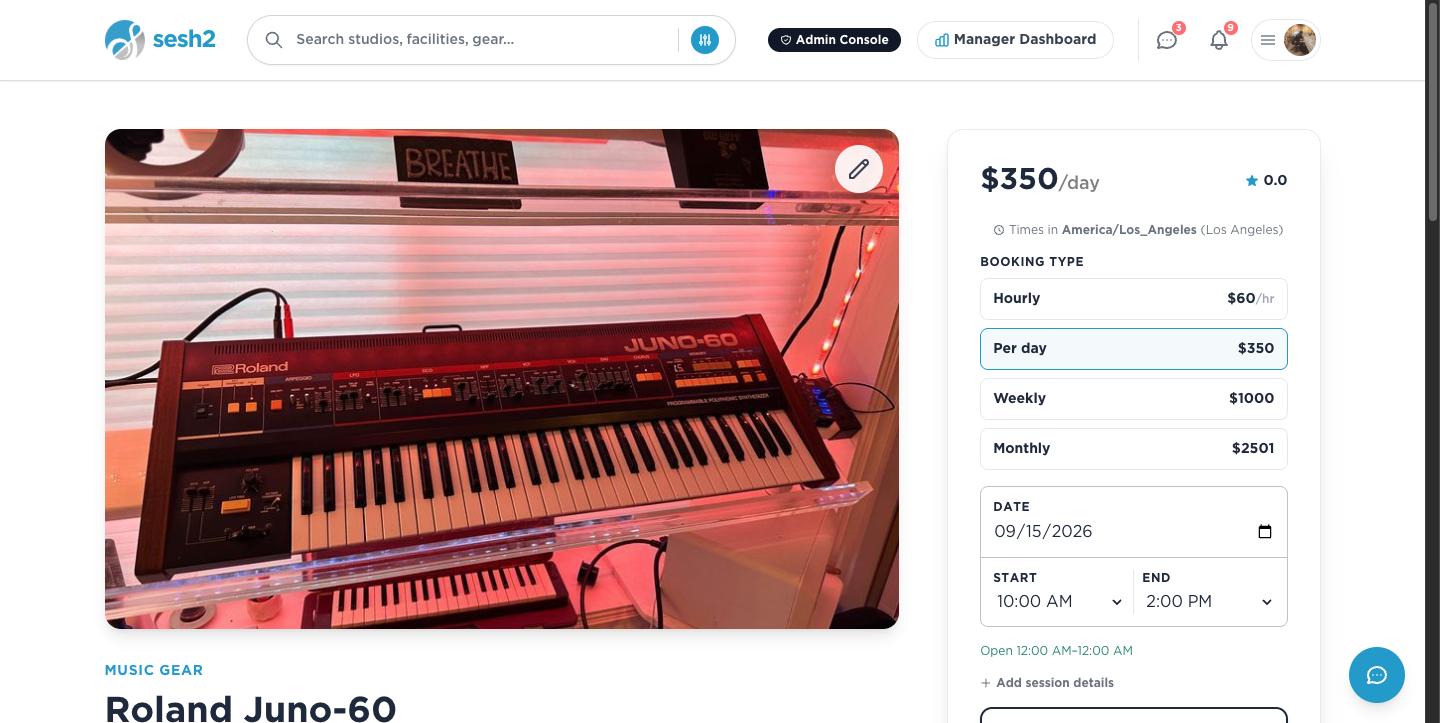
On desktop
On your phone
Confirm and pay
Once your dates check out, review the total — SESH shows the full price before you commit, no surprise fees added at checkout. Confirming moves you to a secure Stripe checkout for payment; you'll get an emailed receipt the moment it clears.
Your card is charged, but the host doesn't see the funds land in their account until 24 hours after your session — so if something goes wrong on the day, there's still a real window to sort it out.
Find it again later
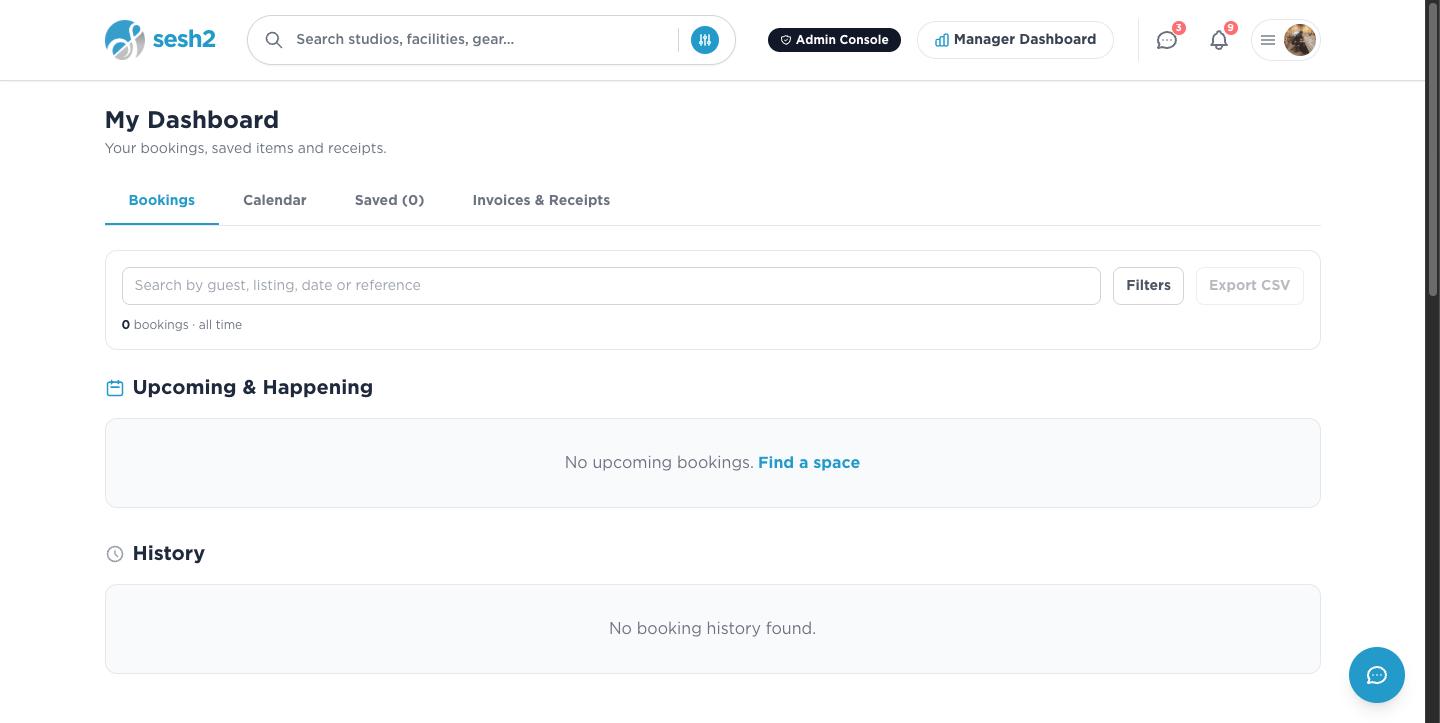
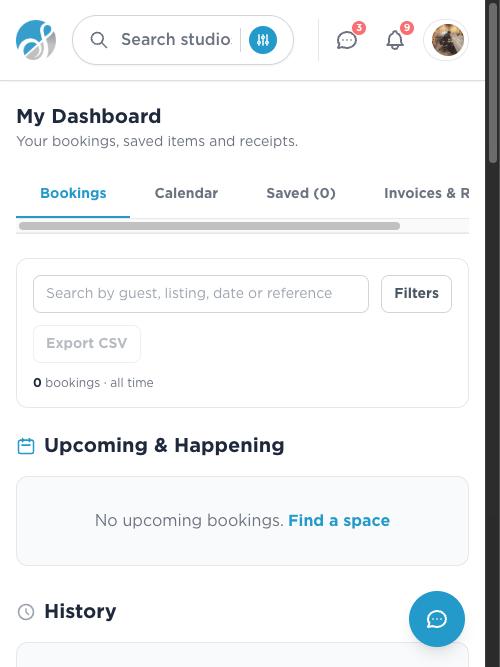
Every booking you make lives in My Dashboard — upcoming sessions, past ones, and your receipts and invoices, all searchable by guest, listing, date, or reference number. You can message the host directly from there if plans change.
On desktop
On your phone
Worth knowing
- ·Booking needs an account, but browsing doesn't — look around freely first.
- ·A listing's price shown at the top of the page is just its headline rate. Always check the full "Booking Type" list — the same room is often cheaper by the day or week than by the hour.
- ·If a listing is part of a Facility (a multi-room studio), you can usually see the other rooms in the same building from its page.
Set up your listing, then your inventory