Creating promo codes for your own audience
Send a discount code to your own email list or followers — a percentage off, a flat amount, a fixed one-off price, or a negotiated rate for a specific customer.
Premium & Top ShelfWhat a promo code actually discounts
A code takes a percentage or a flat dollar amount off a booking, or replaces the price outright with an exact total you set — either one specific listing of yours, or your whole catalog, your choice when you create it. The discount always comes out of your own payout; it never reduces SESH's fee or a roster talent's share of a booking.
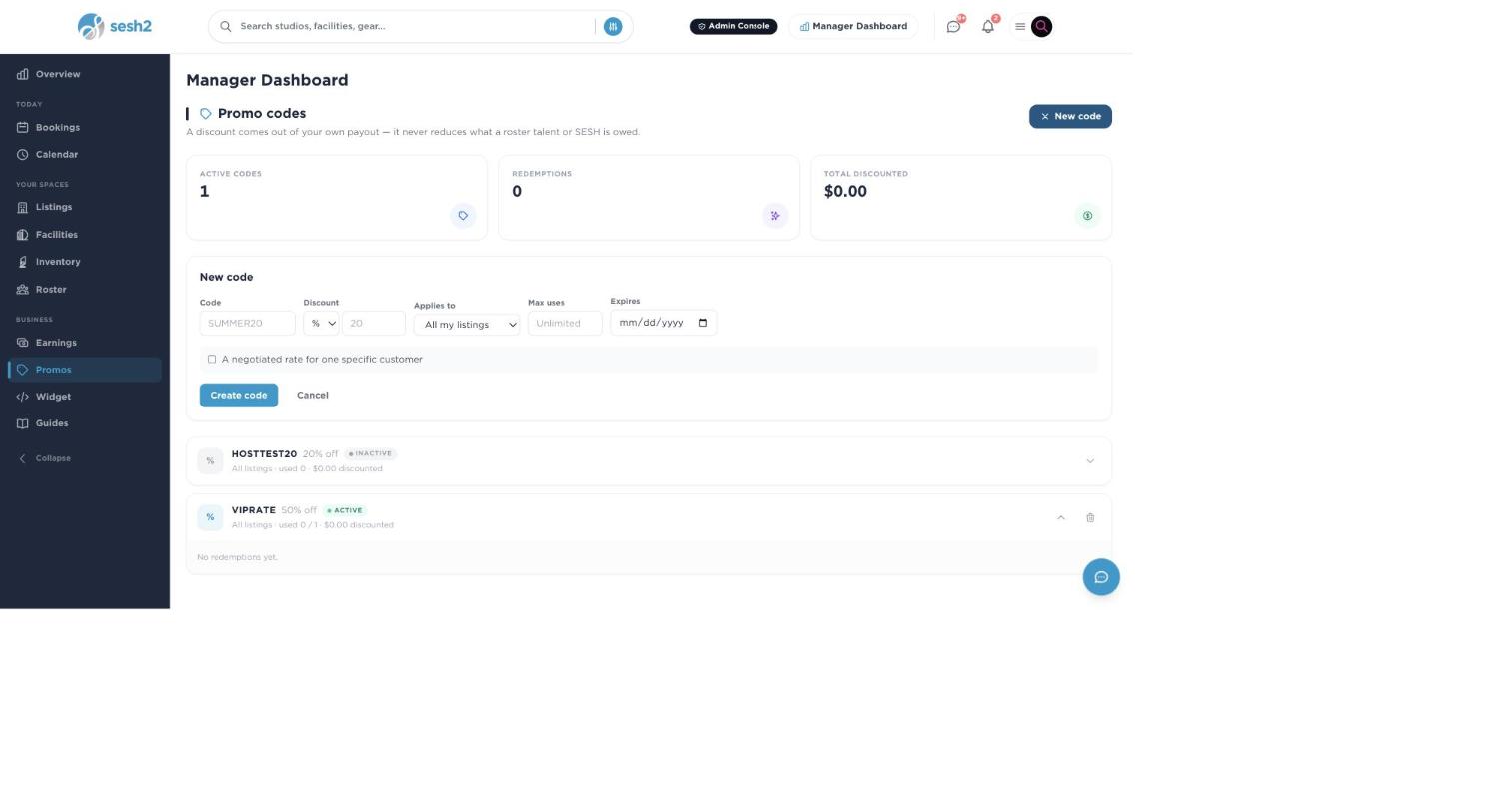
On desktop
Create the code
Open Promo codes in your Manager Dashboard and hit New code. Pick a code (it's uppercased automatically), a type — % off, $ off, or Fixed $ — and its value, then choose Applies to: All my listings or One listing.
Optionally set a Max uses so it can't be redeemed past a certain number of times, and an Expires date so it stops working on its own after a certain day. Leave either blank and the code just keeps working — unlimited redemptions, no expiration.
Send it to your own audience
Once created, the code isn't announced anywhere on SESH — nothing tells a stranger it exists. You send it yourself: an email to your list, a story to your followers, a flyer at the front desk. A guest redeeming it enters it in the collapsed "Promo code" field on the listing's own booking page, right before checkout.
Using a code like an invoice or a PO
A Fixed $ code doesn't discount the listing's rate — it replaces it outright with the exact total you set, regardless of what the listing would normally charge. That makes a code a workable stand-in for a one-off invoice: agree a price with a customer directly, create a code for that exact amount, and let SESH handle the actual charge, identity verification, and payout — the same protections a normal booking gets, for a price you set yourself rather than the listing's own rate.
Check A negotiated rate for one specific customer and the code becomes single-use automatically — Max uses is locked to 1. Add their email only if you want the code locked to that one account; leave it blank and it simply works once, for whoever redeems it first, which covers the common case of a customer who doesn't have a SESH account yet.
Track what it's actually doing
The Promo codes tab shows three numbers at a glance: how many codes are currently active, how many times any of them have been redeemed, and the total dollar amount discounted across all of them. Each code's row shows its own redemption count and total, and the dropdown arrow expands a per-redemption list — how much was taken off, and when.
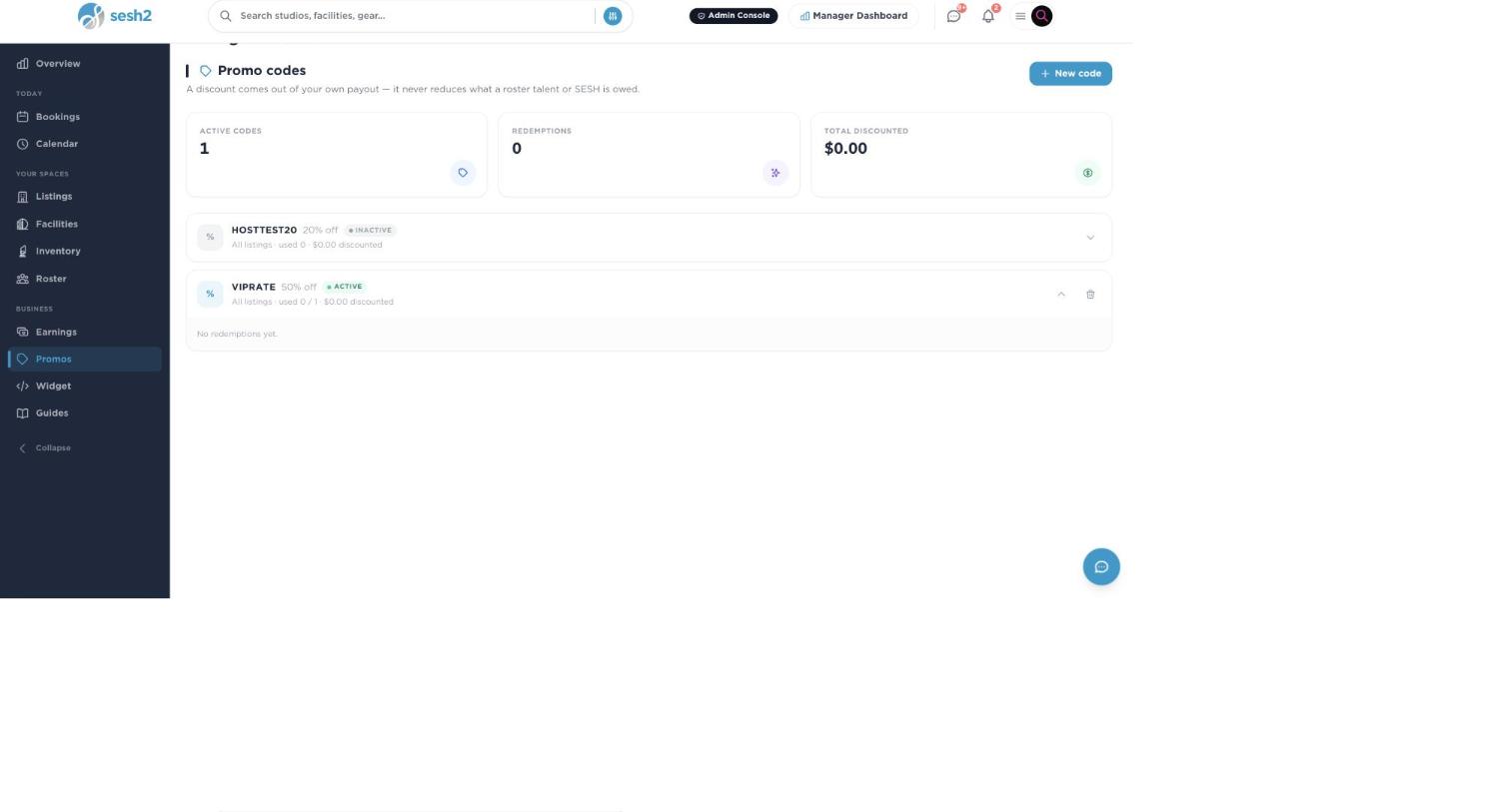
On desktop
Deactivating a code
The trash icon on an active code deactivates it — it stops working for any new redemption immediately. Anyone who already redeemed it keeps their booking exactly as booked; deactivating never touches something already paid for. There's no way to reactivate a deactivated code — create a new one instead.
Worth knowing
- ·A code only applies where you said it could — set to One listing, it won't discount a booking on any of your other listings, even if the guest tries it there.
- ·Facility Session Builder bookings (a room plus gear plus talent in one checkout) don't currently accept a promo code — codes only work on an individual listing's own booking page today.
- ·Codes aren't case-sensitive at redemption — a guest can type it in lowercase and it'll still match.
Sending marketing emails to your followers and past guests